Animations & triggers
Bu içerik henüz dilinizde mevcut değil.
Togenar plays the animation clips baked into your models (glTF animations authored in Blender or your DCC tool). The platform triggers and controls them and does not author keyframes.
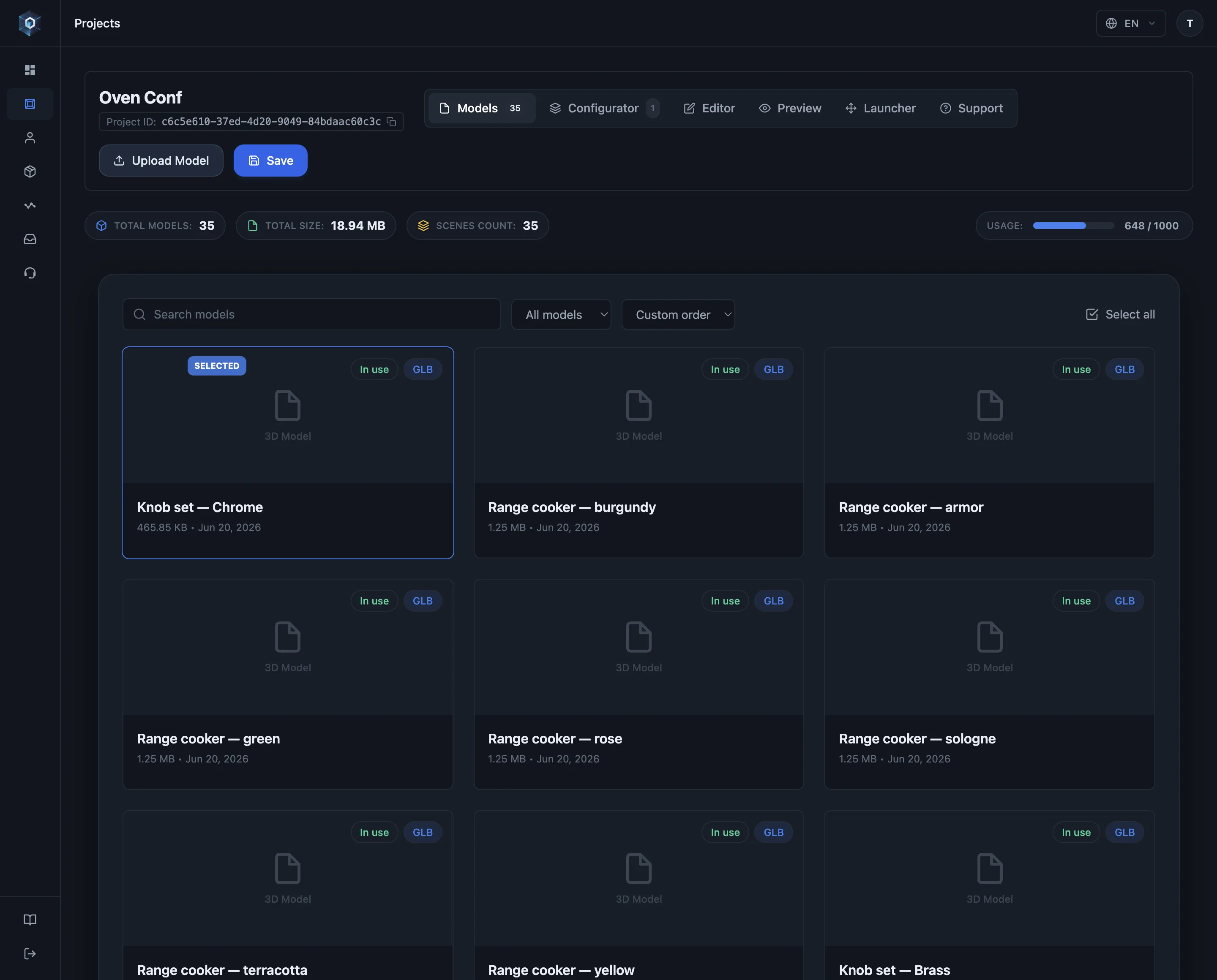
Togenar, modelinize gömülü animasyon kliplerini oynatır. Klipleri yönetmek için Editor sekmesini açın.
Akışın tamamını gördünüz. Şimdi kendi panelinizde deneyin.
- Togenar, modelinize gömülü animasyon kliplerini oynatır. Klipleri yönetmek için Editor sekmesini açın.
- Animation paneli modelin taşıdığı her klibi süresi ve önizleme kontrolleriyle listeler.
- On scene load, sahne göründüğü anda ne olacağını belirler. Varsayılan tetiklemelidir: kapı, açılması istenene kadar kapalı kalır.
- Play, Loop ve Stop, düzenleme sırasında klibi seçtiğiniz hızda önizler. Müşteri burada test ettiğiniz sonucun aynısını görür.
- Klip adını kopyalayın ve hareketin ait olduğu yere bağlayın: bir işaretçi, bir konfigüratör seçeneği ya da bir arayüz butonu.
Getting clips in
Section titled “Getting clips in”Export your GLB with its animation clips included. Preview the model in the editor and the clips appear in the Animation tool panel, each with its duration, Play / Loop / Stop preview controls and a speed slider, plus a copy button for the clip name (the name you bind triggers by). A model without clips shows no animation.
On scene load
Section titled “On scene load”The panel’s On scene load setting decides what happens the moment the scene appears, per scene:
- Play nothing (default, triggers only): clips wait for a marker, option or button. Use it for mechanisms. For example, a door stays closed until the hinge hotspot is tapped.
- Autoplay all clips: every clip starts playing on load.
- Loop one clip as idle: one chosen clip loops as ambient motion (a fan spinning, a fabric sway) while everything else stays trigger-driven.
Triggers
Section titled “Triggers”- From an annotation: in the marker’s Animation section, pick a clip and it plays when the marker is tapped. Tap the hinge hotspot, the door opens. See Annotations.
- From a variation (configurator): Animation on select in the variation panel plays a clip when the shopper picks that variation.
- The play modes are Play once, Loop and Toggle (open / close). Choose the one that matches the mechanism. A drawer should open once and not loop.
A variation set to Toggle publishes a state switch under that option in the
picker: the shopper reads whether the door is open and sets it directly, instead of
re-tapping the swatch to invert an unseen state
(Picker modes). A storefront running its own panel drives
the same state with setAnimationState().
Editor and published viewer behave the same
Section titled “Editor and published viewer behave the same”The same animation controller drives the editor preview and the public viewer, so what you test while authoring is exactly what shoppers get. Marker interaction is click-safe. Dragging to orbit across a marker does not fire its animation, and only a real click or tap triggers it.
Animations in AR
Section titled “Animations in AR”AR hands the model to the system viewer (iOS Quick Look, Android Scene Viewer), and system viewers have no buttons or triggers. Whatever the AR asset carries plays on its own, on a loop, with no way for the shopper to pick a clip.
What the asset carries is a per-project setting in WebAR settings (AR animation):
- First clip loops (default): both platforms loop the model’s first moving clip. Author the motion you want shown as the first clip in your export.
- Still, no animation: the asset ships without animation and the product stands in its rest pose. This is the setting for parts that move on a control (doors, drawers, dials), which would otherwise loop open and shut in front of the shopper.
Marker, option and button triggers apply to the viewer and embeds. They do not apply inside AR.
Good practice
Section titled “Good practice”- Keep clips short and purposeful (open/close, extend/retract). Their job is to demonstrate function.
- Name clips clearly in your DCC tool, because that is the name you bind by.
- Test on a phone: touch targets are smaller and the tap-vs-orbit distinction matters more there.