
Projects, folders & sharing
Bu içerik henüz dilinizde mevcut değil.
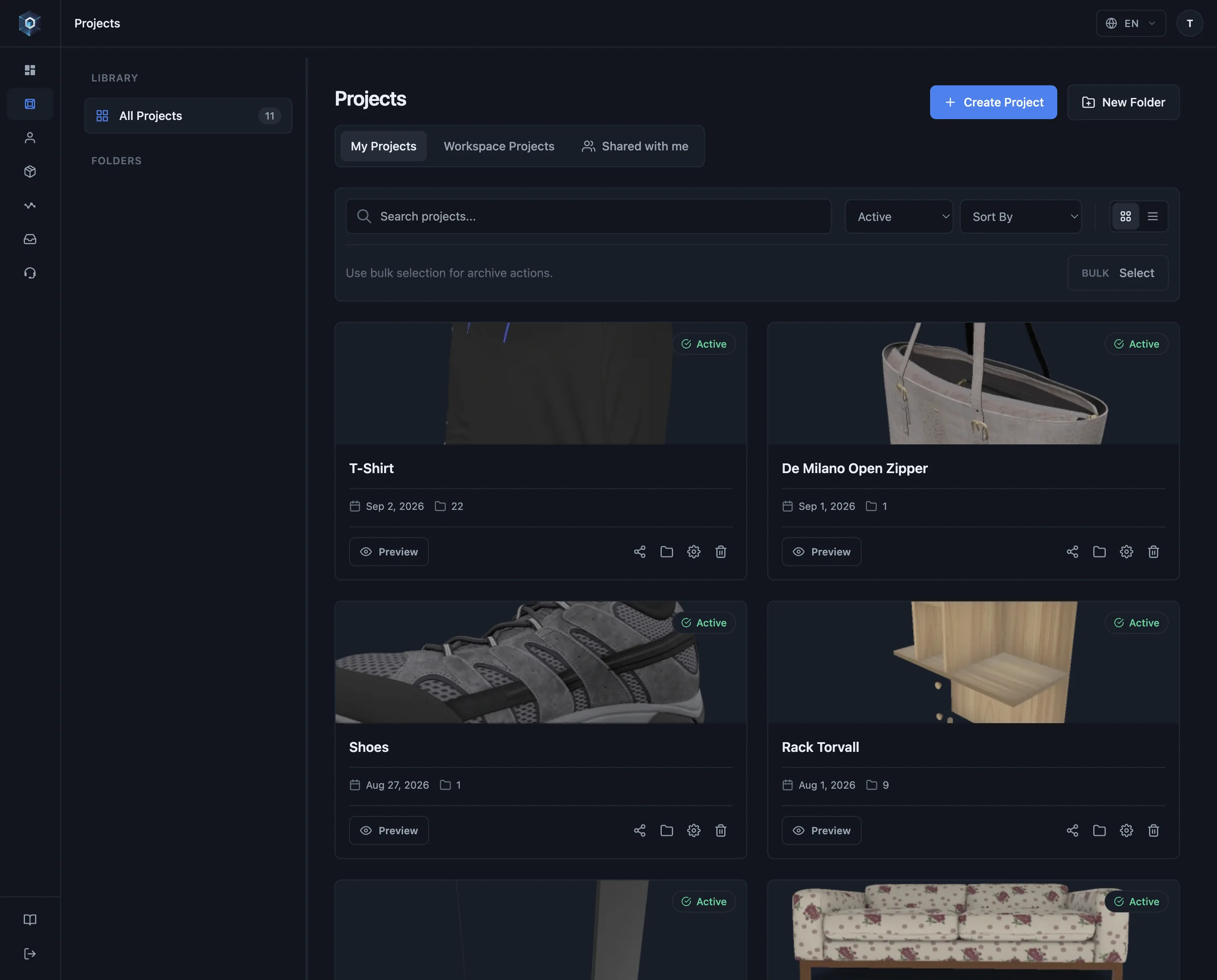
Her ürün burada başlar — ürün ya da koleksiyon başına bir proje.
Akışın tamamı bu — şimdi canlıda deneyin.
- Her ürün burada başlar — ürün ya da koleksiyon başına bir proje.
- Projeleri klasörlerde gruplayın — özel klasörleri yalnızca yetkili kullanıcılar görür.
- Shared with me, ekibinizin sizinle paylaştığı projeleri toplar — aşağıdaki her şeyin alıcı tarafı.
- Erişim proje bazında belirlenir, toplu değil: devretmek istediğiniz kartın paylaş ikonunu açın. Diğer tüm projeler olduğu gibi kalır.
- Panel yalnızca o proje için açılır — içindeki her ayar sadece bu projeye işler.
- Share with team bu projeyi tüm üyeler için Workspace Projects’e koyar. Kapalı bırakırsanız, katalogunuzun geri kalanı ne yaparsa yapsın proje özel kalır.
- Doğrudan paylaşım ise projeyi belirli kişilere verir — yalnızca görüntüleyen viewer ya da ekip gibi çalışan editor olarak.
- Current Access denetim kaydıdır: projeye kim sahip, kim verdi, ve rolü değiştirmek ya da geri almak tek tık.
Where projects live
Section titled “Where projects live”Three lists cover every way a project can reach you:
- My Projects — projects you own.
- Workspace Projects — projects made visible to everyone in the workspace.
- Shared with me — projects other people shared with you directly, possibly from other workspaces.
Sharing a project
Section titled “Sharing a project”Access is decided per project, never in bulk. On the project card, the share icon opens the Manage Project Access panel, and everything in it applies to that one project — the rest of your catalogue is untouched, including projects in the same folder.
Inside the panel:
- Project Visibility → Share with team. Turn it on and this project appears in Workspace Projects for every member of the workspace; leave it off and the project stays in your My Projects only. Save applies it.
- Direct Shares. Pick a workspace member, choose Viewer or Editor, and share. The project stays in your My Projects and shows up in that person’s Shared with me.
- Current Access lists who currently holds the project and who granted it, so a role can be changed or revoked later without guesswork.
Recipients are members of the project’s workspace — direct sharing is how you narrow access to two of them, not how you reach someone who isn’t on the team. To bring in somebody new, add them to the workspace first (see Team & workspaces).
Sharing is part of team collaboration and comes with the Professional and Enterprise plans. On Free, the panel offers the upgrade in place of the sharing controls. If a workspace moves to a plan without team collaboration, its existing shares and team visibility pause: recipients no longer see or open those projects, the owner still sees the shares under Current Access and can remove them, and everything resumes as it was once the plan is upgraded — nothing has to be shared again.
The two mechanisms compose: a project that is not shared with the team can still be handed to two specific people, and a team-visible project can carry direct shares on top — useful when most of the team only needs to look, but two of them need to edit.
Visibility levels
Section titled “Visibility levels”Those choices resolve to one of three states:
| Level | Effect |
|---|---|
| Private | Only in your My Projects — unless you add a direct share. |
| Workspace | Appears in Workspace Projects for every member of this workspace. |
| Direct share | Stays in My Projects for you, and lands in the recipients’ Shared with me. |
Direct shares and workspace visibility compose: a private project can still be shared with two specific teammates without opening it to the whole workspace.
What a direct share grants
Section titled “What a direct share grants”Every direct share carries a role, chosen per person:
| Role | What the recipient can do |
|---|---|
| Viewer | Open the project and its preview. Nothing is editable. |
| Editor | Work on the project — models, scene, configurator — like the rest of the team. A model the live version uses is removed only by the project owner. |
One condition sits on top of the role: an editor’s write access follows the workspace subscription. If the plan lapses, editors drop to read-only until it is active again. Worth checking against Plans & billing before an editor who “suddenly can’t save” is reported as a bug.
Shares are listed under Current Access with who granted them, and can be changed to the other role or removed at any time.
Publishing is separate from visibility — a project being visible to teammates says nothing about whether it is publicly reachable. See Publishing & sharing.
Folders
Section titled “Folders”Folders organize the project lists:
- Create folders, drag to reorder them, and delete them. Deleting a folder never deletes projects — they move back to the root.
- Folders are personal. You see your own; they shape your lists and say nothing about who can open a project. Access is decided in Manage Project Access, above.
- Move projects between folders any time (Move to Folder; No folder means the root).
- The folder you’re browsing is part of the URL — deep-link a teammate straight into a folder.
Uploading models
Section titled “Uploading models”Inside a project, click or drag a model file onto the upload area. Optimization and AR preparation run automatically — see Preparing models for formats and guidelines.