
Annotations & hotspots
Bu içerik henüz dilinizde mevcut değil.
Annotations pin points of interest to the model: a stitching detail, a mechanism, a material callout. In the published viewer they render as hotspot markers shoppers can tap.
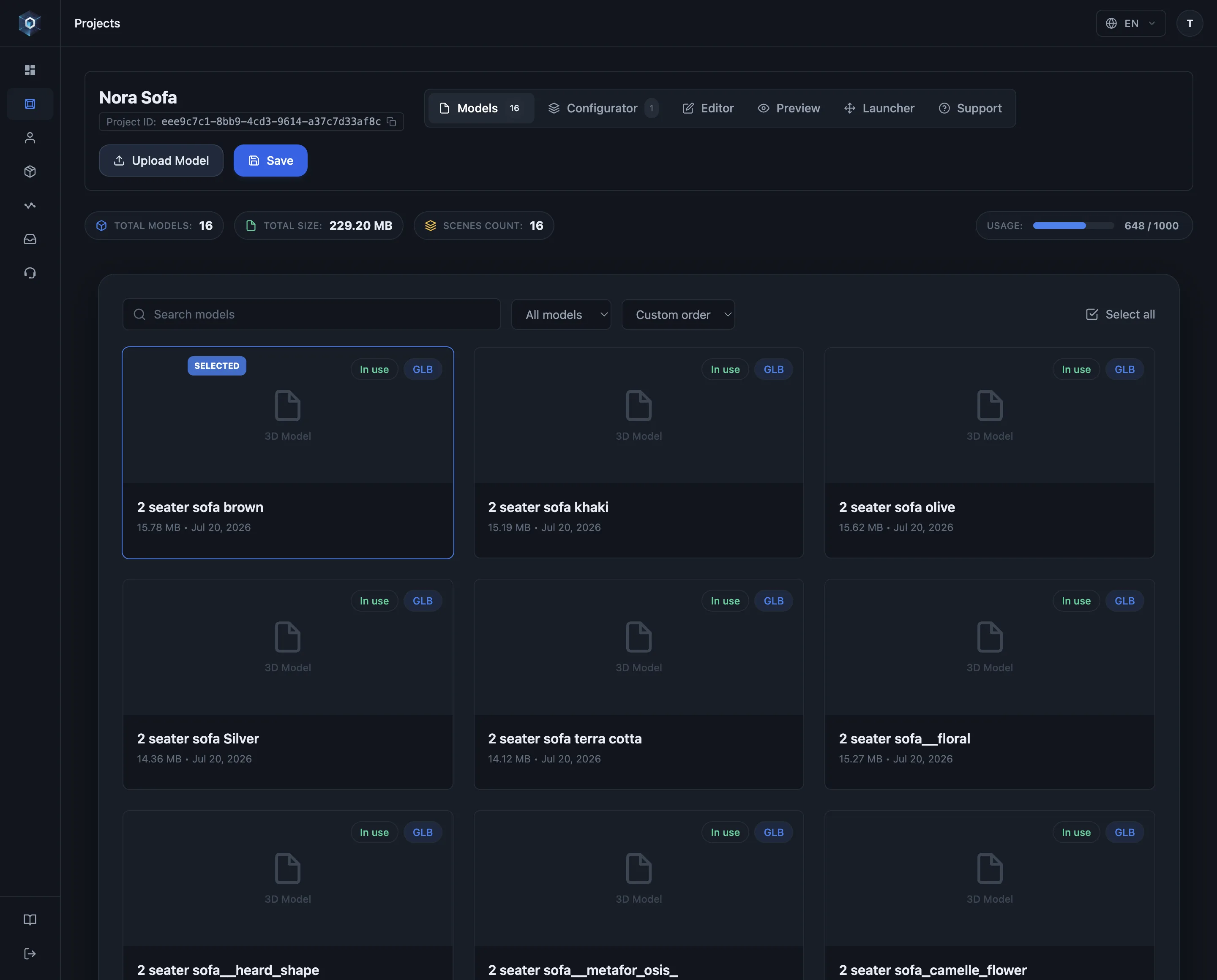
Editor sekmesini açın — sahne stüdyosu: ışık, kameralar, ölçüler ve açıklamalar tek yerde.
Akışın tamamı bu — şimdi canlıda deneyin.
- Editor sekmesini açın — sahne stüdyosu: ışık, kameralar, ölçüler ve açıklamalar tek yerde.
- Açıklamalar modele ilgi noktaları sabitler — yayınlanan görüntüleyicide müşteriler bunlara hotspot olarak dokunur.
- Add yerleştirmeyi başlatır — modelde bir noktaya çift tıklayıp işaretçiyi sabitleyin. Yerleşim açık bir eylemdir; döndürürken işaretçi kazara taşınmaz.
- İki içerik modu var: Single tek popup’tır — Story ise aynı işaretçiyi her adımı kendi popup’ı ve kamerasıyla ilerleyen yönlendirmeli bir seriye çevirir.
- İşaretçiler konfigüratörü tanır — bir işaretçiyi tüm varyasyonlarda ya da yalnızca eklendiği varyasyonda gösterin.
- Popup içeriği bloklardan oluşur — metin, Markdown, görsel ve video blokları, artı en fazla iki eylem çağrısı butonu.
- İşaretçi seçilince kamera o detaya uçar — popup zamanlaması, odak modu, hatta işaretçi başına kayıtlı kamera; hepsi düzenlenebilir.
- İşaretçiyi Story’ye almak onu yönlendirmeli bir seriye çevirir — adımlar bu panelden yaratılır, sürükleyerek sıralanır.
- Hikâye yerinde yazılır: adımlar bu panelden yaratılır, sürükleyerek sıralanır ve herhangi bir adımı düzenlerken sıra görünür kalır.
- Opening View, hikâyenin açılacağı kareyi sabitler. Kaydedilmezse kamera girişi otomatik çerçeveler; hedef geometrisi olmayan bir girişte bu fazla uzaktan bakmak gibi görünür.
Creating and placing
Section titled “Creating and placing”Add annotation creates a marker; double-click a point on the model to place it, then give it its content. Need to move one later? Start hotspot position change and click the new spot — placement is always explicit, so you can’t drag a marker by accident while orbiting.
Popup content is composable: text, Markdown, image and video blocks, plus up to two call-to-action buttons — and the popup’s layout, palette and typography are yours to style.
Single or Story
Section titled “Single or Story”A marker runs in one of two content modes:
- Single — one popup, edited as a standard annotation.
- Story — one marker becomes a guided sequence: ordered steps, each with its own popup content and its own view. Steps are created in place from the story panel and reordered by dragging; the sequence stays visible while editing any step.
A scene runs one story at a time. While a story exists, the viewer shows only that story’s markers — the entry plus its numbered steps. Markers outside the story stay in the editor’s list, dimmed, and return to the scene the moment they are added as steps or the story is switched back to Single. Story is therefore unavailable on other markers while one story owns the scene; their panel links straight to the story that does. To hand the role to a different marker, switch the current story back to Single first.
Each step has one view: by default the camera frames the step’s marker automatically, or press Save View to pin the exact camera you are looking through. Per step you choose how the viewer travels there — the camera flies, or the model rotates (for steps on the product’s far side). Transition speed is set once per story on the entry marker; a single step can override it under Advanced Focus Settings.
The entry has the same control as its steps: Opening View, in the entry’s story tempo section. Frame the camera and save it, and the story opens on exactly that shot. Without one the camera frames the entry automatically, which on an entry with no target geometry reads as standing too far back.
Stories turn a hotspot into a product walkthrough shoppers can step through — no separate tooling, the same marker system.
Story autoplay
Section titled “Story autoplay”The published story popup carries a play button: pressing it advances through the
steps on its own, wrapping back to the start, until the shopper grabs the model or closes
the popup. To share a link that starts playing immediately, append &play=1 to a hotspot
deep link (?hotspot=<id>&play=1).
Focus behaviour
Section titled “Focus behaviour”Selecting a single annotation flies the camera to frame that detail; the model stays physically still and the viewer travels around it. Only story steps may opt into model rotation as their transition.
Transitions are distance-aware: long jumps take longer, a nearly framed target plays a short glide, and an already-framed target doesn’t move the camera at all. Model-rotation steps scale the same way — small corrections spin briefly, long turns keep the story’s tempo.
Closing a popup glides the camera back to where the journey started, and rotate-model steps turn the model back to its resting pose — in the editor preview and the published viewer alike.
Playing an animation from a marker
Section titled “Playing an animation from a marker”An annotation can bind an animation clip in its Animation section — selecting the marker plays it, with a play mode of Play once, Loop or Toggle (open / close). This turns hotspots into interactive demonstrations: tap the hinge marker, the door opens. Requires a model with animation clips — see Animations.
In the configurator
Section titled “In the configurator”Annotations follow an adaptive policy in multi-part products: when only the base part is annotated, its annotations serve the whole assembly; when other parts carry their own, each part shows its own set as parts swap. Authoring stays the same either way.