
Panel & workspace overview
The panel is where your team manages everything that isn’t 3D editing: content organization, people and plan.
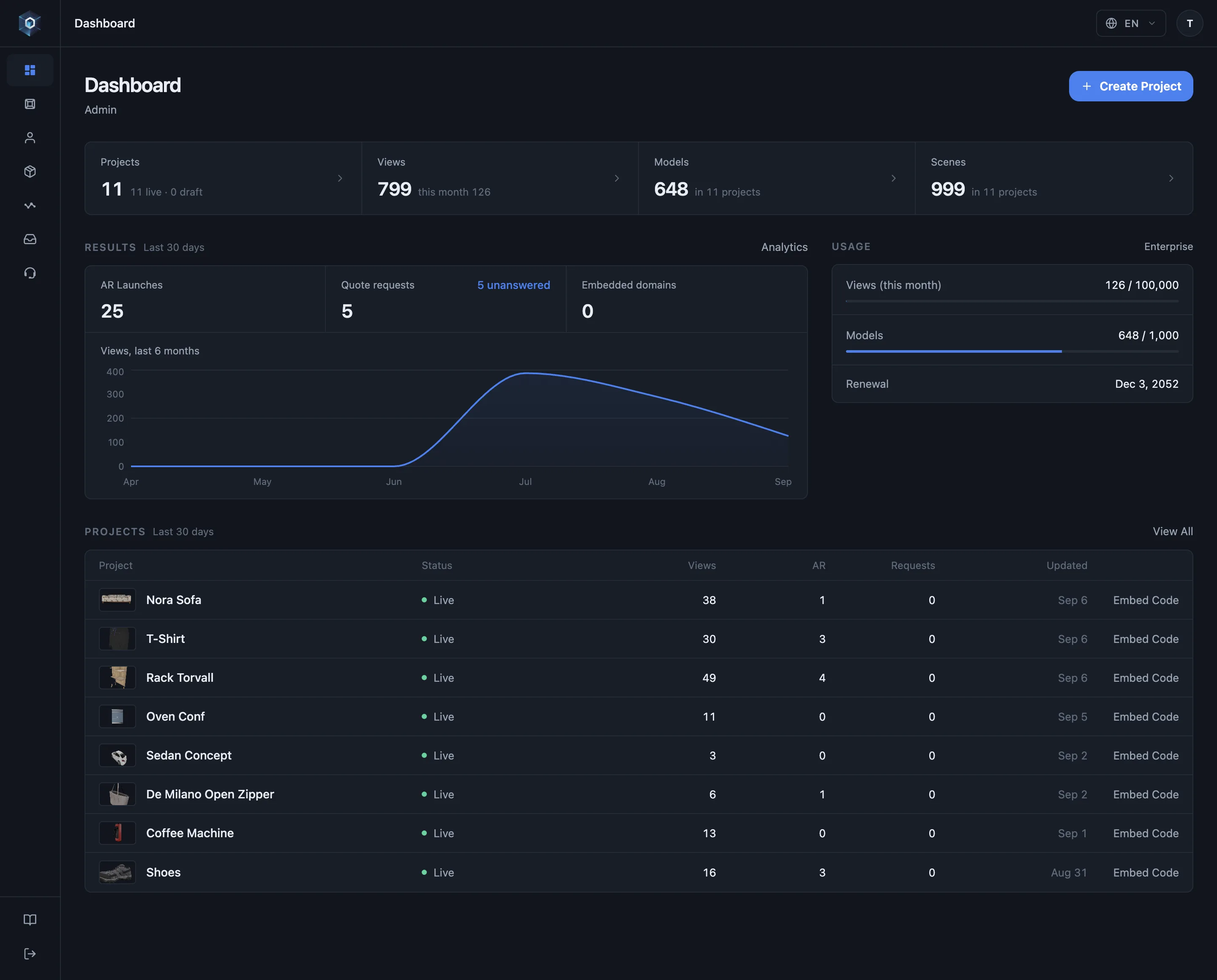
The dashboard first shows what the last 30 days produced, with views, AR launches and quote requests in one row.
You have seen the full flow. Try it in your panel.
- The dashboard first shows what the last 30 days produced, with views, AR launches and quote requests in one row.
- The window is a rolling 30 days, so the number never resets to zero on the first of the month.
- Six months of views show the trend behind the total, such as a campaign, a new embed or a seasonal product.
- Every project shows its own line: live or draft, scenes and models, views in the same window.
- Embed Code is one click from the row. It gives the snippet your storefront pastes, without opening the project first.
- Analytics takes the same numbers further, with time spent in the model, where the traffic came from, and what the configurator produced.
The first screen after sign-in summarises the active workspace:
- Totals: projects (live and draft), views (all time and this month), models and scenes. Each opens its own page.
- Results, last 30 days: AR launches, quote requests with the unanswered count, embedded domains, and a six-month views curve.
- Usage: this month’s views, models and team members against the plan limits, with the renewal date.
- Projects, last 30 days: the latest projects with status, views, AR launches and quote requests over the same 30-day window. A draft that already has a model carries a Publish shortcut, and a live project carries an Embed Code shortcut.
AR launches and per-project views require 3D & AR Usage Analytics (Professional and above). Other plans see a lock in those cells. The views curve, quote requests and usage limits are shown on every plan.
| Area | What it covers |
|---|---|
| Projects & folders | Organize the catalogue. Folder structure is reflected in shareable URLs. |
| Models | Upload, versioning and the automatic optimization pipeline. |
| Team members | Invite teammates with roles. Work is scoped by workspace. |
| Workspaces | Separate containers per brand or client, each with its own members, catalogue and settings. |
| Subscription | Plan, billing and feature entitlements. Publishing follows the plan with a public grace period. |
| Leads | Quote requests from your published configurators, with status tracking and CSV export. |
| Support | Ticket-based support built into the panel. |
Signing in & sessions
Section titled “Signing in & sessions”Sign in with email + password (optionally with two-factor authentication) or a social account. Remember me is checked by default on the sign-in form. With it on, your session renews in the background, so after a long break you return to where you were without signing in again.
- Unchecking Remember me limits the session to 24 hours of inactivity. After that you sign in again and land back on the page you were opening.
- Signing out, changing your password or resetting two-factor authentication ends remembered sessions on all devices, by design.
Password changes and two-factor authentication are managed in Profile → Security & Login.
Section guides
Section titled “Section guides”- Projects, folders & sharing: organization and the three visibility levels
- Team & workspaces: roles, invitations, ownership
- Plans & billing: entitlements, dependencies, lapse behaviour
- Leads: quote requests, statuses and CSV export
- Support tickets: built-in help, and what to include