
The publish flow
Publishing is a single explicit gate: until you publish, nothing about a project is publicly reachable.
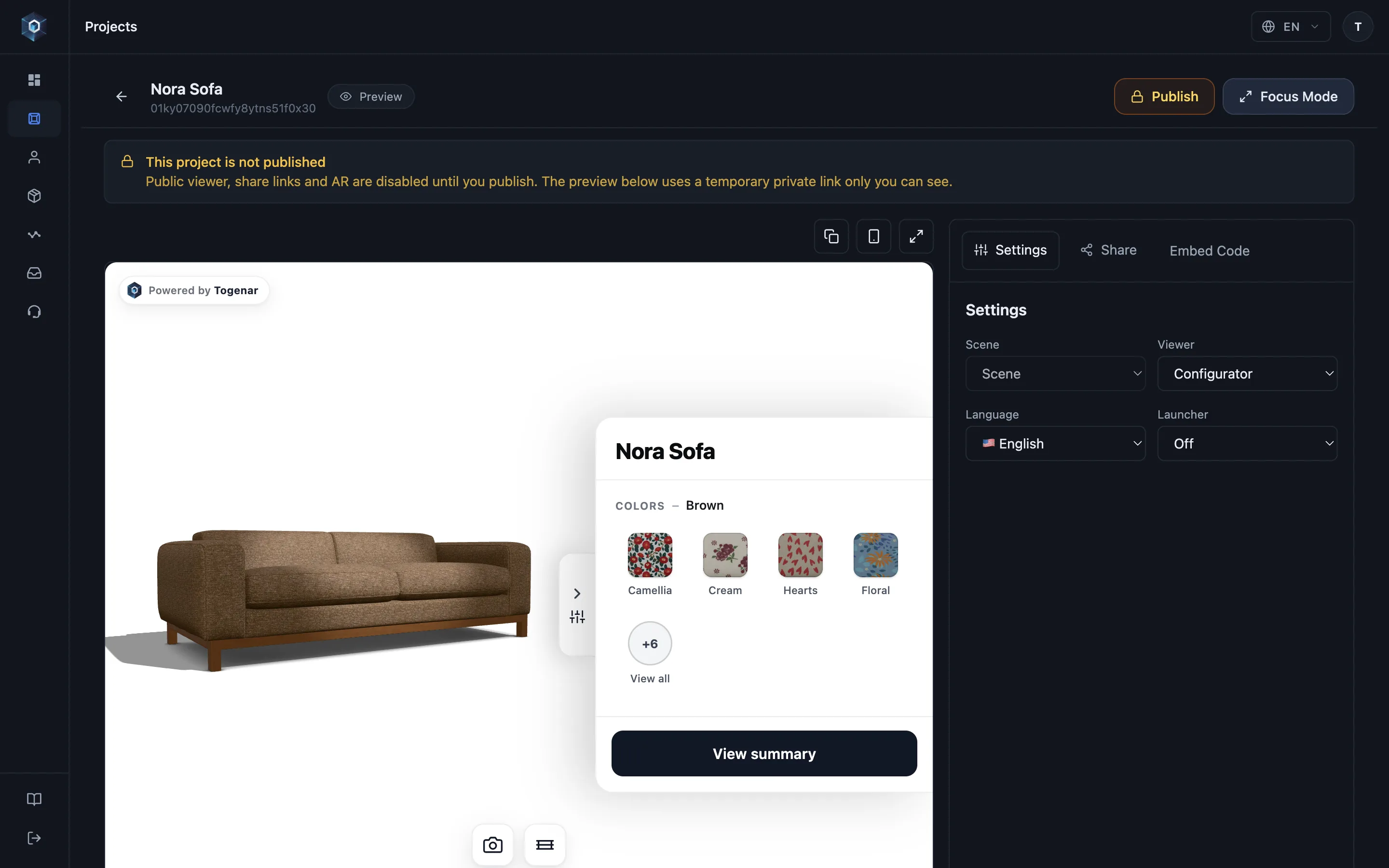
An unpublished project is fully functional for you and invisible to everyone else.
You have seen the full flow. Try it in your panel.
- An unpublished project is fully functional for you and invisible to everyone else.
- Click Publish. A single action opens every public surface.
- The project is live. Visitors see a frozen snapshot, and your edits stay private until you publish again.
- Open the Share tab. Every distribution channel uses the same published state.
- Copy the public link, QR launcher or embed code. Each one serves the published version.
Before publishing
Section titled “Before publishing”An unpublished project is fully functional for you, invisible to the world:
- Public viewer, share links and AR are disabled until you publish.
- The in-panel preview uses a temporary private link only you can see, so you can polish with the team while the outside URL stays a 404.
Two things follow from how that preview link works:
- It is signed and short-lived. While previewing, your browser’s address bar shows the long signed form, and that URL stops working once the signature expires. To share a project, always use the Copy actions in the share drawer, which produce the permanent public link.
- Preview sessions are yours alone in the numbers too: they are never counted against your view limit and write no analytics, so rehearsing a project as often as you like costs nothing and leaves your statistics clean.
Publish and unpublish
Section titled “Publish and unpublish”Publish from the project with the publish toggle, which also shows the current state. Unpublishing takes the public surfaces down again, and your content stays intact in the panel.
Versions
Section titled “Versions”Every publish creates a numbered version. Visitors see the live version, and what you save afterwards stays in the panel until you publish again. That includes the model files. Uploading a file under a name a version already uses stores it beside the old one and puts it in your draft, while visitors keep the file they had until you publish.
The Publishing tab of the project preview shows:
- The live version, and whether you have unpublished changes. If you undo your edits, the draft matches the live version again and nothing is left to publish.
- Publish changes with an optional version note. The note stays on that version’s row.
- Every version, with its note and when and by whom it last went live.
- Restore on each earlier version. It goes live again and opens in the editor, without creating a new version.
- Discard draft, shown while you have unpublished changes. It returns the draft to the live version, so the editor opens on what visitors see. The draft you discarded appears under Unpublished drafts. The same action sits in the editor header next to the save status.
- Unpublished drafts: changes you had not published when you restored a version or discarded the draft. Restore to draft brings them back into the editor. The live version stays as it is until you publish.
What publishing feeds
Section titled “What publishing feeds”One publish action powers every distribution surface with the same state:
- The public viewer page and the short link / QR launcher (see Links, QR & launcher).
- Embeds on your site, including the domain allowlist check.
- AR entry on every device.
Plan note: publishing follows your workspace plan, and lapsed subscriptions get a public grace window. See Plans & billing.